
macOS ties natural scrolling to a single global switch in System Settings → Trackpad. That’s fine if you only ever use one input device. It’s a hassle if you’re like me: natural, content-follows-your-finger scrolling on the laptop trackpad on the go, and classic wheel-direction scrolling once I’m back at a desk, plugged in, with a real mouse.
NaturalOnBattery is a free, open-source menu bar app that makes that switch for you, based on power source. Unplug: natural. Plug in: classic. No more trips to System Settings.
Using it
Click the arrow-and-battery icon in the menu bar:
- Enabled — turns automatic management on or off. The status line above it always shows what it’s doing, e.g. “Natural scrolling — on battery.”
- Mode — Automatic (the default), or force Always Natural / Always Classic.
- Launch at Login.
- Uninstall NaturalOnBattery… — removes the login item, clears settings and moves the app to the Trash in one click.
Installing
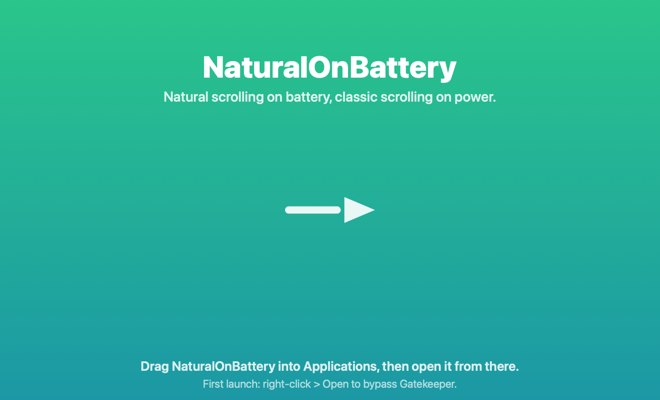
Grab the DMG from Releases and drag the app into Applications. It isn’t notarized (no paid developer account behind this), so the first time, right-click the app and choose Open. That’s the only prompt you’ll see — it doesn’t need Accessibility or any other privacy permission, because all it does is read the power source and write a standard preference. Requires macOS 13 Ventura or later.
How it works
It listens for power-source changes with IOPSNotificationCreateRunLoopSource — a push notification, not a polling timer — so it reacts the instant you plug or unplug. On each change it writes com.apple.swipescrolldirection in the global preferences domain: the exact same key the “Natural scrolling” checkbox controls. The change takes effect system-wide immediately, no logout needed.
There is no network code at all. The whole app is a few hundred lines of Swift, and you’re welcome to read every one of them. Tools like BetterTouchTool can do this too, among a thousand other things — this does exactly one job. MIT licensed.
Also in the “tiny Mac fixes” department: SideNav makes your mouse’s back/forward buttons work in Finder.
Free and open source, and it’s staying that way. If it saved you some time, you can buy me a coffee.